命令行接口
安装 Flask 会在你的虚拟环境中安装 flask 脚本,一个 Click 命令行接口。在终端中执行这个脚本,可以访问内置、扩展和应用定义的命令。--help 选项会给出关于任何命令和选项的更多信息。
应用发现
flask 命令由 Flask 安装,而不是你的应用;必须告诉它在哪里找到你的应用才能使用它。--app 选项用于指定如何加载应用。
虽然 --app 支持多种选项来指定你的应用,但大多数用例应该是简单的。这里是典型的值:
- (无)
导入名为 "app" 或 "wsgi" 的模块(作为 ".py" 文件或包),自动检测应用(
app或application)或工厂(create_app或make_app)。--app hello导入给定的名称,自动检测应用(
app或application)或工厂(create_app或make_app)。
--app 有三部分:一个可选的路径,用于设置当前工作目录,一个 Python 文件或点分隔的导入路径,以及一个实例或工厂的可选变量名。如果名称是一个工厂,它可以选择在括号中跟随参数。以下值演示了这些部分:
--app src/hello将当前工作目录设置为
src,然后导入hello。--app hello.web导入路径
hello.web。--app hello:app2在
hello中使用app2Flask 实例。--app 'hello:create_app("dev")'The
create_appfactory inhellois called with the string'dev'as the argument.
If --app is not set, the command will try to import "app" or
"wsgi" (as a ".py" file, or package) and try to detect an application
instance or factory.
Within the given import, the command looks for an application instance named
app or application, then any application instance. If no instance is
found, the command looks for a factory function named create_app or
make_app that returns an instance.
If parentheses follow the factory name, their contents are parsed as Python literals and passed as arguments and keyword arguments to the function. This means that strings must still be in quotes.
Run the Development Server
The run command will start the development server. It
replaces the Flask.run() method in most cases.
$ flask --app hello run
 * Serving Flask app "hello"
 * Running on http://127.0.0.1:5000/ (Press CTRL+C to quit)
警告
Do not use this command to run your application in production. Only use the development server during development. The development server is provided for convenience, but is not designed to be particularly secure, stable, or efficient. See 部署到生产环境 for how to run in production.
如果端口 5000 已被其他程序占用,当服务器尝试启动时,你会看到 OSError: [Errno 98] 或 OSError: [WinError 10013] 错误。有关如何处理此问题,请参阅 Address already in use 。
调试模式
In debug mode, the flask run command will enable the interactive debugger and the
reloader by default, and make errors easier to see and debug. To enable debug mode, use
the --debug option.
$ flask --app hello run --debug
 * Serving Flask app "hello"
 * Debug mode: on
 * Running on http://127.0.0.1:5000/ (Press CTRL+C to quit)
 * Restarting with inotify reloader
 * Debugger is active!
 * Debugger PIN: 223-456-919
The --debug option can also be passed to the top level flask command to enable
debug mode for any command. The following two run calls are equivalent.
$ flask --app hello --debug run
$ flask --app hello run --debug
Watch and Ignore Files with the Reloader
When using debug mode, the reloader will trigger whenever your Python code or imported
modules change. The reloader can watch additional files with the --extra-files
option. Multiple paths are separated with :, or ; on Windows.
$ flask run --extra-files file1:dirA/file2:dirB/
 * Running on http://127.0.0.1:8000/
 * Detected change in '/path/to/file1', reloading
The reloader can also ignore files using fnmatch patterns with the
--exclude-patterns option. Multiple patterns are separated with :, or ; on
Windows.
Open a Shell
To explore the data in your application, you can start an interactive Python
shell with the shell command. An application
context will be active, and the app instance will be imported.
$ flask shell
Python 3.10.0 (default, Oct 27 2021, 06:59:51) [GCC 11.1.0] on linux
App: example [production]
Instance: /home/david/Projects/pallets/flask/instance
>>>
Use shell_context_processor() to add other automatic imports.
Environment Variables From dotenv
The flask command supports setting any option for any command with
environment variables. The variables are named like FLASK_OPTION or
FLASK_COMMAND_OPTION, for example FLASK_APP or
FLASK_RUN_PORT.
Rather than passing options every time you run a command, or environment variables every time you open a new terminal, you can use Flask's dotenv support to set environment variables automatically.
If python-dotenv is installed, running the flask command will set
environment variables defined in the files .env and .flaskenv.
You can also specify an extra file to load with the --env-file
option. Dotenv files can be used to avoid having to set --app or
FLASK_APP manually, and to set configuration using environment
variables similar to how some deployment services work.
Variables set on the command line are used over those set in .env,
which are used over those set in .flaskenv. .flaskenv should be
used for public variables, such as FLASK_APP, while .env should not
be committed to your repository so that it can set private variables.
Directories are scanned upwards from the directory you call flask
from to locate the files.
The files are only loaded by the flask command or calling
run(). If you would like to load these files when running in
production, you should call load_dotenv() manually.
Setting Command Options
Click is configured to load default values for command options from
environment variables. The variables use the pattern
FLASK_COMMAND_OPTION. For example, to set the port for the run
command, instead of flask run --port 8000:
$ export FLASK_RUN_PORT=8000
$ flask run
 * Running on http://127.0.0.1:8000/
$ set -x FLASK_RUN_PORT 8000
$ flask run
 * Running on http://127.0.0.1:8000/
> set FLASK_RUN_PORT=8000
> flask run
 * Running on http://127.0.0.1:8000/
> $env:FLASK_RUN_PORT = 8000
> flask run
 * Running on http://127.0.0.1:8000/
These can be added to the .flaskenv file just like FLASK_APP to
control default command options.
Disable dotenv
The flask command will show a message if it detects dotenv files but
python-dotenv is not installed.
$ flask run
 * Tip: There are .env files present. Do "pip install python-dotenv" to use them.
You can tell Flask not to load dotenv files even when python-dotenv is
installed by setting the FLASK_SKIP_DOTENV environment variable.
This can be useful if you want to load them manually, or if you're using
a project runner that loads them already. Keep in mind that the
environment variables must be set before the app loads or it won't
configure as expected.
$ export FLASK_SKIP_DOTENV=1
$ flask run
$ set -x FLASK_SKIP_DOTENV 1
$ flask run
> set FLASK_SKIP_DOTENV=1
> flask run
> $env:FLASK_SKIP_DOTENV = 1
> flask run
Environment Variables From virtualenv
If you do not want to install dotenv support, you can still set environment
variables by adding them to the end of the virtualenv's activate
script. Activating the virtualenv will set the variables.
Unix Bash, .venv/bin/activate:
$ export FLASK_APP=hello
Fish, .venv/bin/activate.fish:
$ set -x FLASK_APP hello
Windows CMD, .venv\Scripts\activate.bat:
> set FLASK_APP=hello
Windows Powershell, .venv\Scripts\activate.ps1:
> $env:FLASK_APP = "hello"
It is preferred to use dotenv support over this, since .flaskenv can be
committed to the repository so that it works automatically wherever the project
is checked out.
Custom Commands
The flask command is implemented using Click. See that project's
documentation for full information about writing commands.
This example adds the command create-user that takes the argument
name.
import click
from flask import Flask

app = Flask(__name__)

@app.cli.command("create-user")
@click.argument("name")
def create_user(name):
    ...
$ flask create-user admin
This example adds the same command, but as user create, a command in a
group. This is useful if you want to organize multiple related commands.
import click
from flask import Flask
from flask.cli import AppGroup

app = Flask(__name__)
user_cli = AppGroup('user')

@user_cli.command('create')
@click.argument('name')
def create_user(name):
    ...

app.cli.add_command(user_cli)
$ flask user create demo
See 使用 CLI Runner 运行命令 for an overview of how to test your custom commands.
Registering Commands with Blueprints
If your application uses blueprints, you can optionally register CLI
commands directly onto them. When your blueprint is registered onto your
application, the associated commands will be available to the flask
command. By default, those commands will be nested in a group matching
the name of the blueprint.
from flask import Blueprint

bp = Blueprint('students', __name__)

@bp.cli.command('create')
@click.argument('name')
def create(name):
    ...

app.register_blueprint(bp)
$ flask students create alice
You can alter the group name by specifying the cli_group parameter
when creating the Blueprint object, or later with
app.register_blueprint(bp, cli_group='...').
The following are equivalent:
bp = Blueprint('students', __name__, cli_group='other')
# or
app.register_blueprint(bp, cli_group='other')
$ flask other create alice
Specifying cli_group=None will remove the nesting and merge the
commands directly to the application's level:
bp = Blueprint('students', __name__, cli_group=None)
# or
app.register_blueprint(bp, cli_group=None)
$ flask create alice
Application Context
Commands added using the Flask app's cli or
FlaskGroup command() decorator
will be executed with an application context pushed, so your custom
commands and parameters have access to the app and its configuration. The
with_appcontext() decorator can be used to get the same
behavior, but is not needed in most cases.
import click
from flask.cli import with_appcontext

@click.command()
@with_appcontext
def do_work():
    ...

app.cli.add_command(do_work)
Plugins
Flask will automatically load commands specified in the flask.commands
entry point. This is useful for extensions that want to add commands when
they are installed. Entry points are specified in pyproject.toml:
[project.entry-points."flask.commands"]
my-command = "my_extension.commands:cli"
Inside my_extension/commands.py you can then export a Click
object:
import click

@click.command()
def cli():
    ...
Once that package is installed in the same virtualenv as your Flask project,
you can run flask my-command to invoke the command.
Custom Scripts
When you are using the app factory pattern, it may be more convenient to define
your own Click script. Instead of using --app and letting Flask load
your application, you can create your own Click object and export it as a
console script entry point.
Create an instance of FlaskGroup and pass it the factory:
import click
from flask import Flask
from flask.cli import FlaskGroup

def create_app():
    app = Flask('wiki')
    # other setup
    return app

@click.group(cls=FlaskGroup, create_app=create_app)
def cli():
    """Management script for the Wiki application."""
Define the entry point in pyproject.toml:
[project.scripts]
wiki = "wiki:cli"
Install the application in the virtualenv in editable mode and the custom
script is available. Note that you don't need to set --app.
$ pip install -e .
$ wiki run
Errors in Custom Scripts
When using a custom script, if you introduce an error in your module-level code, the reloader will fail because it can no longer load the entry point.
The flask command, being separate from your code, does not have
this issue and is recommended in most cases.
PyCharm Integration
PyCharm Professional provides a special Flask run configuration to run the development
server. For the Community Edition, and for other commands besides run, you need to
create a custom run configuration. These instructions should be similar for any other
IDE you use.
In PyCharm, with your project open, click on Run from the menu bar and go to Edit Configurations. You'll see a screen similar to this:
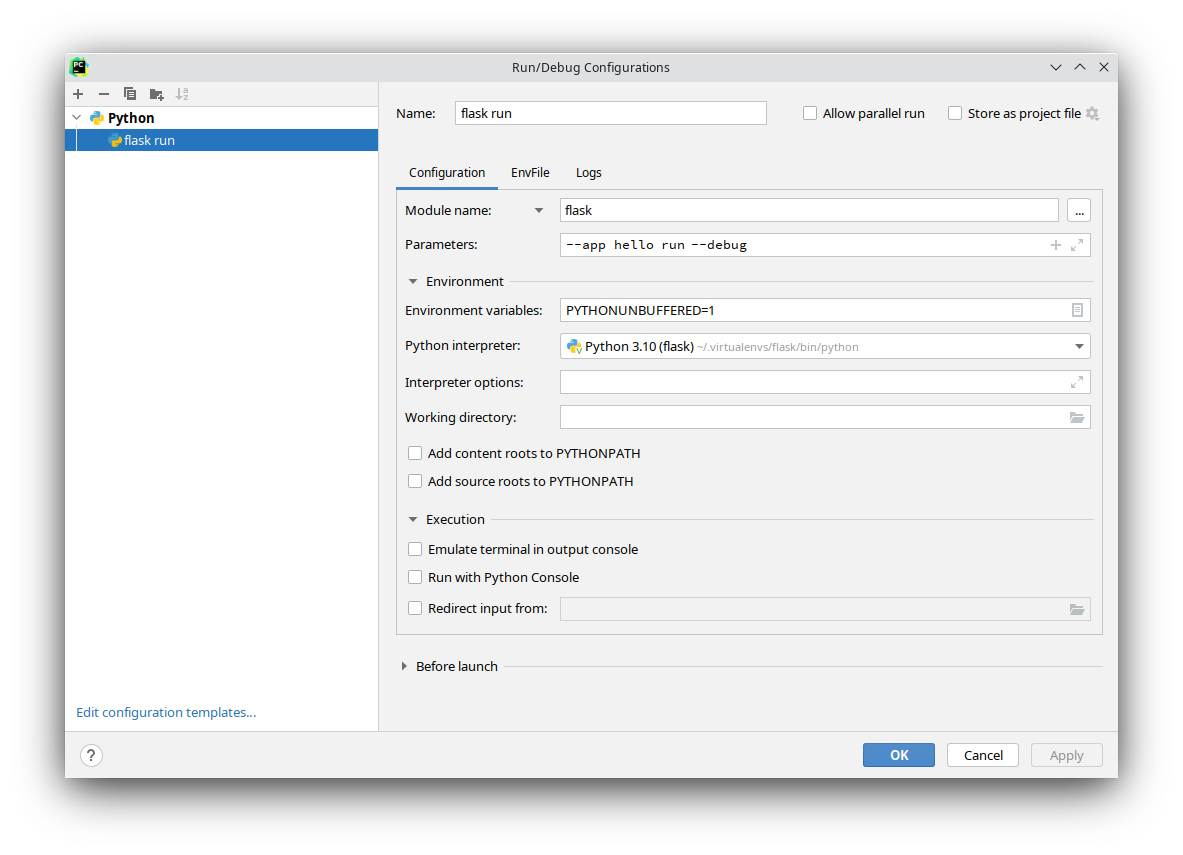
Once you create a configuration for the flask run, you can copy and change it to
call any other command.
Click the + (Add New Configuration) button and select Python. Give the configuration a name such as "flask run".
Click the Script path dropdown and change it to Module name, then input flask.
The Parameters field is set to the CLI command to execute along with any arguments.
This example uses --app hello run --debug, which will run the development server in
debug mode. --app hello should be the import or file with your Flask app.
If you installed your project as a package in your virtualenv, you may uncheck the PYTHONPATH options. This will more accurately match how you deploy later.
Click OK to save and close the configuration. Select the configuration in the main PyCharm window and click the play button next to it to run the server.
Now that you have a configuration for flask run, you can copy that configuration and
change the Parameters argument to run a different CLI command.
